
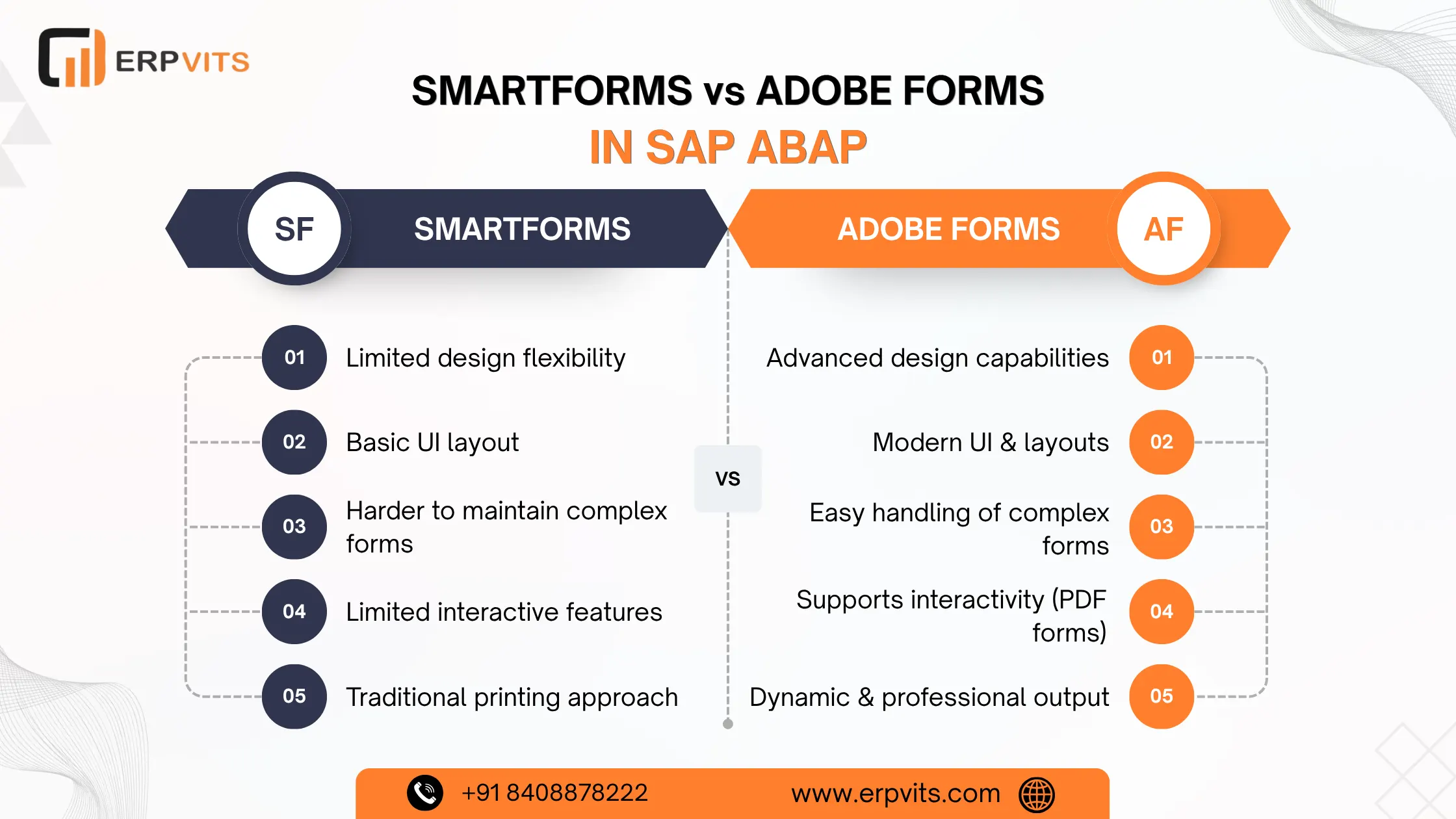
SmartForms vs Adobe Forms in SAP ABAP: Which One Should You Use?
If you're creating purchase orders, invoices, delivery notes, or payslips using SAP, the output of forms is an essential element of any workflow in the enterprise. Two main technologies are used within the SAP ABAP system: SmartForms and Adobe Forms (Interactive Forms). The choice of which one to use can affect your project's maintainability, adaptability, as well as long-term compatibility.
In this tutorial we will break down SmartForms within SAP ABAP and Adobe Forms in depth -- including their design, use scenarios, a step-by-step guide to build SmartForms as well as how to troubleshoot SmartForms within SAP ABAP, how to print barcodes, and how you can transform a SmartForm into an Adobe Form. In the end you'll know what tool is best suited to your needs.
What Are SmartForms in SAP ABAP?
SmartForms is the form design and output technology that was introduced within SAP R/3 4.6C as a replacement for SAPscript. It lets functional consultants and developers create print-ready forms with the help of a graphical form-building tool based on trees without the need to write complex code.
SmartForms can be used to print documents for business such as:
- Invoices and sales orders
- Delivery slips and packing lists
- HR payslips, remittances, and pay slips
- Confirmations and purchase orders
The SAP transaction code for SmartForms is SMARTFORMS and the resulting function module is invoked straight through SAP ABAP programs to generate output.
Key Characteristics of SmartForms
- Tree-based graphical layout that includes windows, pages and nodes
- Inbuilt support for tables, graphics, text, and table formatting
- Form logic is written directly in the forms (no separate include required)
- Output is rendered as spool requests (print) / PDF using OTF conversion
- Multilingual support for integrated translations output
What Are Adobe Forms in SAP ABAP?
Adobe Forms, also called SAP Interactive Forms by Adobe, were released within SAP NetWeaver 7.0. They use Adobe LiveCycle Designer and are based on the PDF standard which allows printing forms as well as online forms that users can complete offline or online.
The transaction codes include:
- SFP -- Form Builder for Adobe Forms
- SE80 -- Allows navigation to create objects
Adobe Forms are able to support printable output (for printing) and fillable, dynamic PDF forms that can be filled out electronically -- a feature SmartForms can't match.
Difference Between Adobe Forms and SmartForms in SAP ABAP
Knowing the differences between Adobe Forms and SmartForms in SAP ABAP is the first step towards deciding on the appropriate tool for your project.
| Feature | SmartForms | Adobe Forms |
|---|---|---|
| Introduction | SAP R/3 4.6C | SAP NetWeaver 7.0 |
| Transaction Code | SMARTFORMS | SFP |
| Design Tool | SAP Form Builder (browser-based) | Adobe LiveCycle Designer |
| Output Format | OTF (print) / PDF via conversion | Native PDF |
| Interactive Forms | Not supported | Fully supported |
| Barcodes | Supported (via form elements) | Supported (via LiveCycle) |
| Digital Signatures | Not supported | Supported |
| Offline Capability | No | Yes (fillable PDFs) |
| Web Dynpro Integration | Limited | Native integration |
| Complexity | Lower -- easier to master | Higher -- will require LiveCycle expertise |
| Future Roadmap | Limited SAP investment | Actively maintained by SAP |
| Skill Requirement | ABAP + basic form design | ABAP + Adobe LiveCycle Designer |
| Performance | Quick and simple for print forms | A little heavier for batch output |
| Translation Support | Built-in | By means of the SFP interface |
When to Use SmartForms
- SAP systems from the past (ECC 6.0 and lower)
- Simple documents that are print only
- Teams that do not have Adobe LiveCycle expertise
- Rapid development times for regular output
When to Use Adobe Forms
- SAP S/4HANA environments (Adobe Forms is the preferred standard)
- Interactive, fillable PDF forms
- Digital signature requirements
- Web Dynpro ABAP or Fiori applications
- Offline form submission workflows
SmartForm Example in SAP ABAP: Step-by-Step Creation
Let's look at the steps to build a SmartForm using SAP ABAP from scratch using a real-world example -- a simple invoice form.
Step 1: Open the SmartForms Transaction
Go to the transaction SMARTFORMS. Click Create to enter the name of the form, e.g., ZERRPVITS_INVOICE.
Step 2: Define the Form Interface
The Form Builder will click on the Form Interface within the tree. Determine the import parameters your ABAP driver program will use to pass:
" Example Import Parameters
IT_HEADER TYPE ZERPVITS_HEADER_TAB
IT_ITEMS TYPE ZERPVITS_ITEMS_TAB
IV_COMPANY TYPE CHAR100
This is the agreement between you and the calling ABAP program.
Step 3: Define Global Definitions
Within the Global Definitions, declare any field variables, field symbols or any other type that is required by the logic of your form:
DATA: lv_total TYPE p DECIMALS 2,
      lv_line TYPE ZERPVITS_ITEM_LINE.
Step 4: Design the Page Layout
In the Form Builder Tree:
- 1ST PAGE -- Create the Page node. Set the paper dimensions (A4), orientation and margins.
- Include a Header Window, Main Window (for repeating content) and Footer Window.
- Inside the Header Window, add a Text node to display the company name and address.
- In the Main Window, add a table node to display line items.
- On the Footer Window, add totals and page numbers.
Step 5: Define Table Structure for Line Items
Within the Main Window, add the table node. Configure:
- Table Header: Column labels (Description, Qty, Unit Price, Total)
- Line Type: Use your loop over IT_ITEMS
- Data Cells: Bind to lv_line-description, lv_line-price, lv_line-total
Step 6: Activate and Generate the Function Module
Click Activate. SAP automatically generates a function module. You can retrieve it using:
CALL FUNCTION 'SSF_FUNCTION_MODULE_NAME'
  EXPORTING
    formname           = 'ZERPVITS_INVOICE'
  IMPORTING
    fm_name            = lv_fm_name
  EXCEPTIONS
    no_form            = 1
    no_function_module = 2
    OTHERS             = 3.
Step 7: Call the SmartForm from the ABAP Driver Program
Data: lv_fm_name Type rs38l_fnam.

" Get the generated function module name
CALL FUNCTION 'SSF_FUNCTION_MODULE_NAME'
  EXPORTING
    formname = 'ZERPVITS_INVOICE'
  IMPORTING
    fm_name  = lv_fm_name.

" Call the form
CALL FUNCTION lv_fm_name
  EXPORTING
    iv_company       = lv_company
  TABLES
    it_header        = lt_header
    it_items         = lt_items
  EXCEPTIONS
    formatting_error = 1
    internal_error   = 2
    send_error       = 3
    user_canceled    = 4
    OTHERS           = 5.

IF sy-subrc <> 0.
  MESSAGE 'Error generating SmartForm output' TYPE 'E'.
ENDIF.
This is the basis of SmartForms functionality in SAP ABAP -- interface, layout, driver program, output.
Expert Guidance
Learn from industry experts
Trusted & Recognized
Top-rated by learners
Flexible Learning
Online options
Placement Support
Career support & more
How to Debug SmartForms in SAP ABAP
Debugging SmartForms requires a different approach to standard ABAP applications, because the form logic is implemented inside the function module that is generated.
Method 1: Use the SmartForms Debugger
- Go to the transaction SMARTFORMS and open your form.
- Go to Form Test (or hit F8).
- Test results by passing the parameters of the interface.
- Utilize the ABAP Debugger (press F5 in order to go across nodes).
This is the easiest method for investigating SmartForms using SAP ABAP during development.
Method 2: Set a Breakpoint in the Generated Function Module
Since SmartForms create a function module, you can create a breakpoint yourself:
" Set a breakpoint prior to calling the form
BREAK-POINT.
CALL FUNCTION lv_fm_name
  EXPORTING
    iv_company = lv_company ...
Method 3: Debug via SE37
- Go to SE37 -- Enter the generated FM name (retrieve it via SSF_FUNCTION_MODULE_NAME).
- Click Test/Execute -- Enter your test parameters.
- Create breakpoints in the source code of the function module.
Method 4: Activate Debugging in the Driver Program
The most popular method of production debugging is:
" Add this to your SmartForm call
IF sy-uname = 'YOUR_USER'.
  BREAK-POINT.
ENDIF.
Common SmartForms Debugging Scenarios
| Issue | Debug Approach |
|---|---|
| Wrong data in output | Check the interface parameter bindings in nodes |
| Table is not rendering | Verify loop condition on the table node |
| Pages missing | Look up pagination logic in the Page node |
| Text cut off | Check the window's height and the settings for text overflow |
| Blank output | Check the condition nodes -- they could be filtering all the data |
How to Print Barcode in SmartForms in SAP ABAP
Barcode printing is a standard requirement for warehouse, logistic, manufacturing, and logistics forms. Here's how you can print barcodes using SmartForms within SAP ABAP:
Step 1: Ensure Barcode is Configured in SPAD
Visit the transaction SPAD and select Utilities > Barcodes. Check that the barcode definition you have selected (e.g., BC_EAN13, BC_CODE128) is accessible and connected with your printer.
Step 2: Add a Graphic Node or Text Node for Barcode
Inside the SmartForms Form Builder, within your window:
- Right-click the desired Node -- Create > Text
- Within the text editor, select the Format tab, then Character -- Choose barcode character format.
- Select the type of barcode (e.g., Code 128, EAN 13).
Step 3: Define a Barcode Character Format
Go to SMARTFORMS and select Environment > Character Formats -- Create a new character format using:
- Barcode type: 128 (or the symbology required)
- Bar Width: The width of the module in hundredths of millimeters
- Height: Bar height in mm
Step 4: Bind Barcode Data
Within your text node, add:
&lv_barcode_value&
Where lv_barcode_value is the barcode data string (e.g., EAN code, serial number).
Step 5: Assign Barcode to Printer
Make sure the output device in SPAD is compatible with barcode printing. Laser printers typically support PCL and PostScript barcode commands. If you're using a Zebra or thermal printer, use ZPL compatible barcode codes.
How to Convert SmartForm to Adobe Form in SAP ABAP
As SAP shifts to S/4HANA and Adobe Forms becomes the strategic standard, many projects will require conversion. Here's how you can change a SmartForm into an Adobe Form in SAP ABAP:
Step 1: Analyze the Existing SmartForm
Before migrating, you must document:
- All parameters of the interface (import, export, tables, exceptions)
- All form nodes (pages, windows, tables, text, graphics, and conditions)
- ABAP logic embedded into Program Lines nodes
- All text symbols and Translation objects
Step 2: Create a New Adobe Form in SFP
Go to the transaction SFP and click Create > Create a Form -- Type in a name -- Select the Form (not the interface). Create your Interface first: In SFP -- Create the interface -- Choose Interface -- Create parameters that match the parameters of your SmartForm interface.
Step 3: Design the Layout in Adobe LiveCycle Designer
In the SFP Form Builder:
- Click the Layout tab -- Opens Adobe LiveCycle Designer.
- Recreate the visual structure: tables, headers, text fields, images.
- Bind data nodes of the Interface to form fields with drag-and-drop.
Step 4: Migrate Embedded ABAP Logic
SmartForms permit program lines (ABAP code) within the form. For Adobe Forms, equivalent logic is implemented in the Interface's ABAP code section or in the calling program. All program lines should be moved into the form's Global Definitions or to the driver program prior to calling the form.
Step 5: Migrate Conditions
SmartForms utilize condition nodes. Within Adobe Forms, conditions are controlled by:
- Accessibility properties of form fields and subforms
- Script (JavaScript or FormCalc) for client-side requirements
- ABAP logic inside the interface to handle server-side situations
Step 6: Update the Driver Program
The calling program changes from using SSF_FUNCTION_MODULE_NAME to the Adobe Forms approach:
DATA: lo_fp           TYPE REF TO if_fp,
      lo_docparams    TYPE sfpdocparams,
      lo_outputparams TYPE sfpoutputparams,
      lo_form_object  TYPE REF TO if_fp_pdf_object.

" Get FP reference
lo_fp = cl_fp=>get_reference( ).

" Set output parameters
lo_outputparams-nodialog = 'X'.
lo_outputparams-preview  = 'X'.

" Call the Adobe Form
CALL FUNCTION 'FP_FUNCTION_MODULE_NAME'
  EXPORTING
    formname = 'ZERPVITS_ADOBE_INVOICE'
  IMPORTING
    fm_name  = lv_fm_name.

CALL FUNCTION lv_fm_name
  EXPORTING
    /1bcdwb/docparams    = lo_docparams
    /1bcdwb/outputparams = lo_outputparams
  TABLES
    it_header            = lt_header
    it_items             = lt_items.
Step 7: Test and Validate Output
Check your Adobe Form output side-by-side with the original SmartForm output. Be aware of:
- Overflow and page breaks
- Font rendering differences
- Table column widths
- Header/footer repetition on multi-page output
SmartForms vs Adobe Forms: The Final Verdict
| Criteria | Winner |
|---|---|
| Ease of Learning | SmartForms |
| Interactive Forms | Adobe Forms |
| S/4HANA Compatibility | Adobe Forms |
| Print-Only Legacy Systems | SmartForms |
| Barcode Flexibility | Adobe Forms (edge) |
| Long-Term SAP Roadmap | Adobe Forms |
| Quick Development | SmartForms |
| Digital Signatures | Adobe Forms |
- For brand new SAP S/4HANA applications: Adobe Forms is the best choice and is in line with SAP's strategy.
- For existing ECC systems with no plans to migrate: SmartForms remain fully efficient and cost-effective.
- For projects involving migration: Follow the conversion instructions above and schedule adequate testing time, particularly for complex multi-page forms with conditional logic.
Frequently Asked Questions
Q: Is SmartForms still supported in SAP S/4HANA?
It is true that SmartForms are available in S/4HANA. SAP suggests Adobe Forms as the strategic output technology. Any new development should make use of Adobe Forms.
Q: Do I have to convert a SmartForm into an Adobe Form automatically?
SAP doesn't offer an automated tool for migration. The conversion process must be performed manually by creating the interface and layout in SFP. The steps in this guide provide an established framework for the procedure.
Q: Which one is quicker to develop -- SmartForms or Adobe Forms?
SmartForms tend to be faster for simple printing forms. Adobe Forms are more difficult to master because of the LiveCycle Designer environment, but they offer a greater degree of flexibility for intricate designs as well as interactive situations.
Q: How can I print barcodes in Adobe Forms?
Using Adobe LiveCycle Designer, drag a barcode field from the Object Library onto your layout. Set the barcode type (Code 128, QR Code, etc.) and then connect it to the data node. This is easier than SmartForms for modern barcodes.
Conclusion
Both SmartForms and Adobe Forms have earned their places within the SAP ABAP developer's toolkit. SmartForms excel in legacy or ECC situations where speed, ease of use and reliability are essential. Adobe Forms is the future -- providing digital signatures, interactive PDFs, S/4HANA integration, as well as more immersive design experiences.
Knowing the differences between Adobe Forms and SmartForms in SAP ABAP, knowing how to create SmartForms step-by-step, mastering the ability to debug SmartForms, printing barcodes, and executing the perfect SmartForm to Adobe Form conversion are all necessary skills for every SAP ABAP consultant today.
At ERPVITS, we assist enterprises develop, construct and transfer SAP output forms with a high degree of precision -- starting from old SmartForms modernization to complete Adobe Forms implementation on S/4HANA. Reach out to one of our SAP ABAP experts to start the process.